Overview
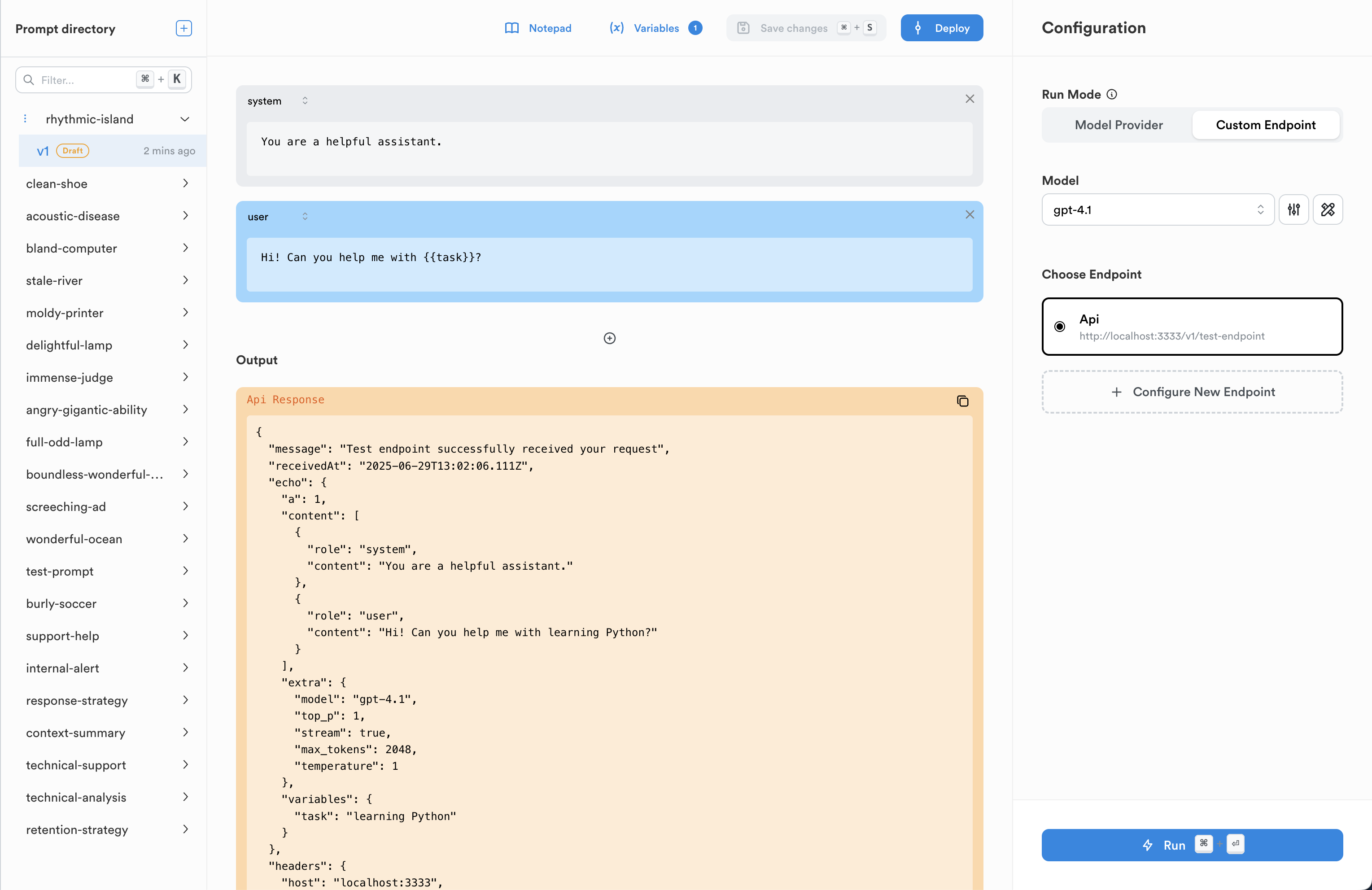
The Prompt Playground allows you to:- Test prompts with different LLM providers (OpenAI, Anthropic, etc.)
- Compare outputs across multiple models
- Experiment with parameters like temperature and max tokens
- Test prompts against your own custom API endpoints
- Save and collaborate on prompt experiments with team members
- Create draft versions without affecting production (RBAC ensures only authorized users can deploy)
Variables and Dynamic Content
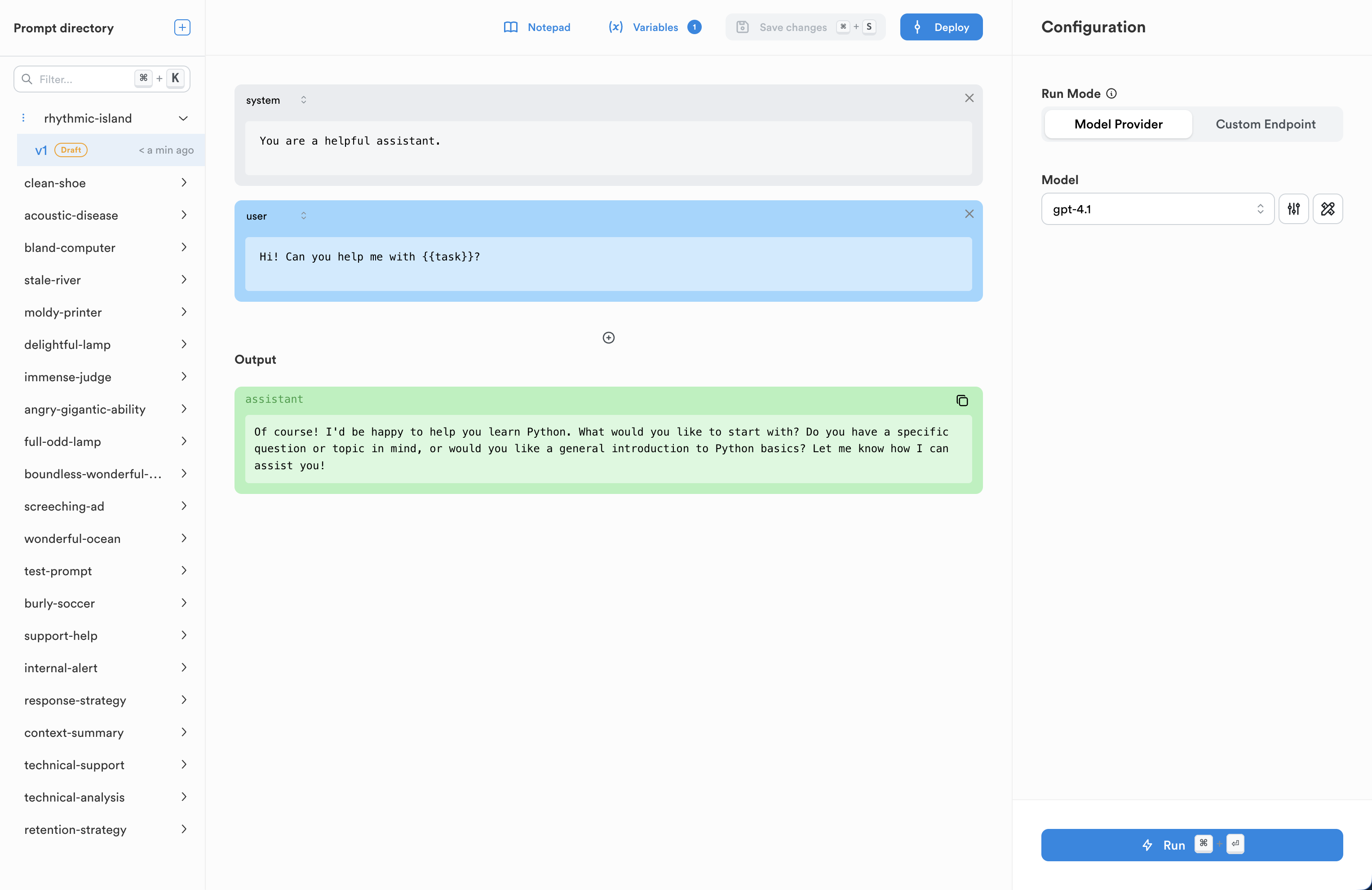
The Playground supports dynamic variables in your prompts:- Define variables using double curly braces:
{{variable_name}} - Enter test values in the Variables section
- See how different variable values affect the output
Saving and Collaboration
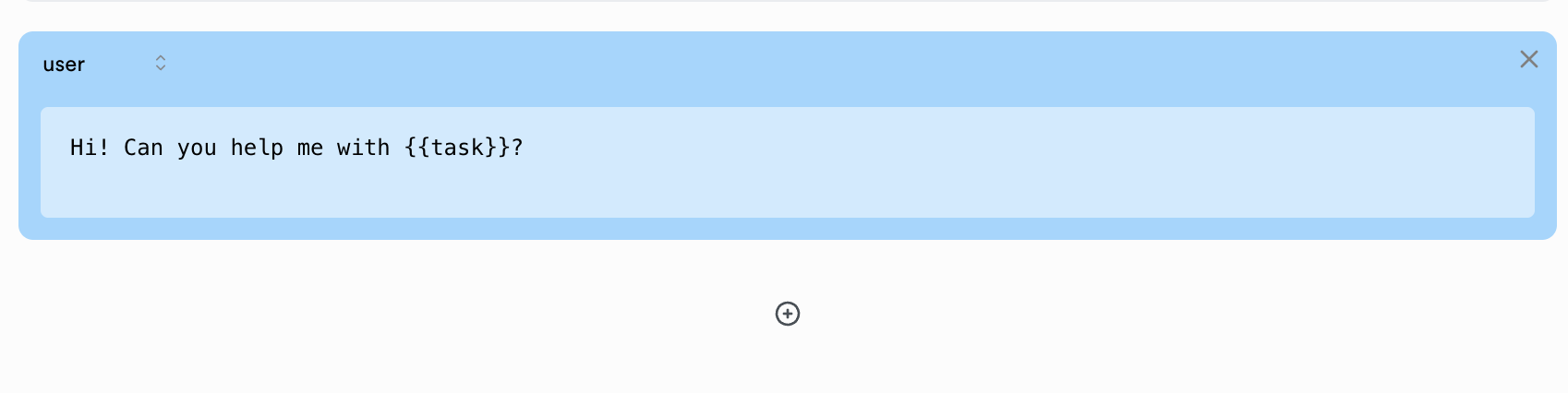
The Playground supports team collaboration with built-in versioning and role-based access control:Creating Draft Versions
- Click “Save as Draft” to save your experiments without affecting production
- Add version notes to document your changes and findings
- Share the draft with team members for review and feedback
Collaboration Features
- Draft Sharing: Team members can view and test your draft prompts
- Notepad: Leave feedback on specific prompt versions via the notepad
- Role-Based Access:
- Developers and prompt engineers can create and edit drafts
- Only authorized users (with deployment permissions) can promote drafts to production
- Viewers can test prompts but cannot modify them
Testing with Custom Endpoints
One of the most powerful features of the Prompt Playground is the ability to test prompts against your own custom API endpoints. This is particularly useful for:- RAG (Retrieval-Augmented Generation) systems
- Custom AI applications with proprietary logic
- API wrappers that combine multiple AI services
- Complex systems that include more components than just an LLM
Setting Up Custom Endpoints
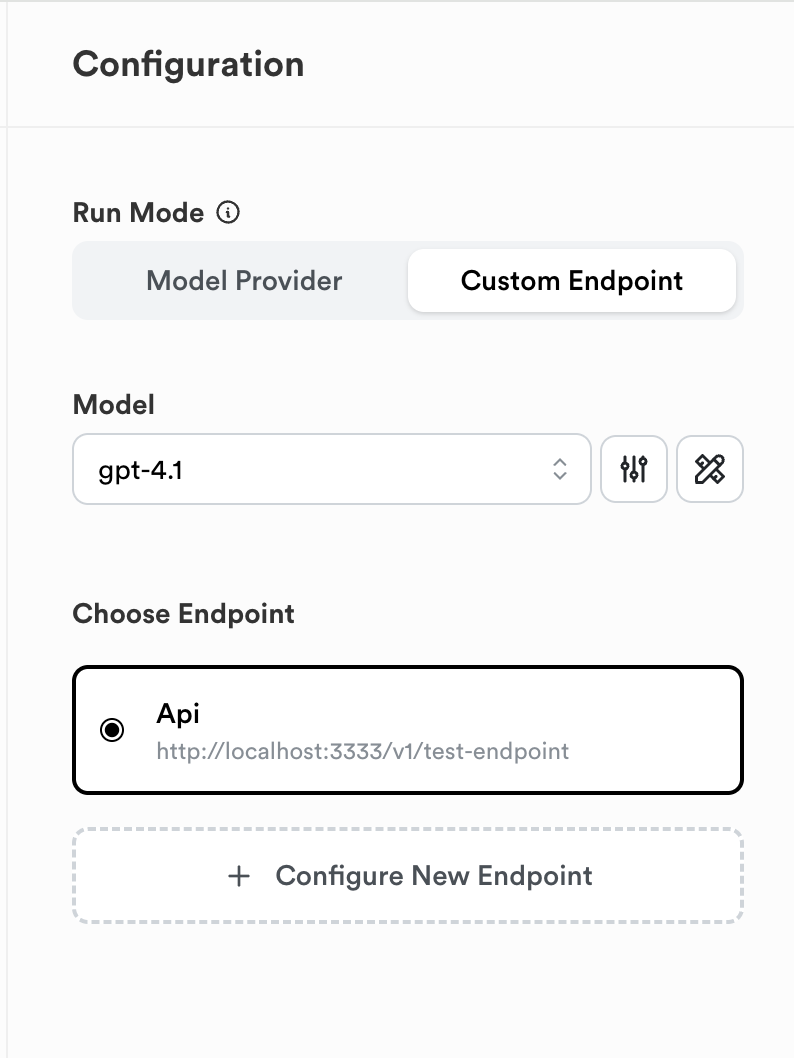
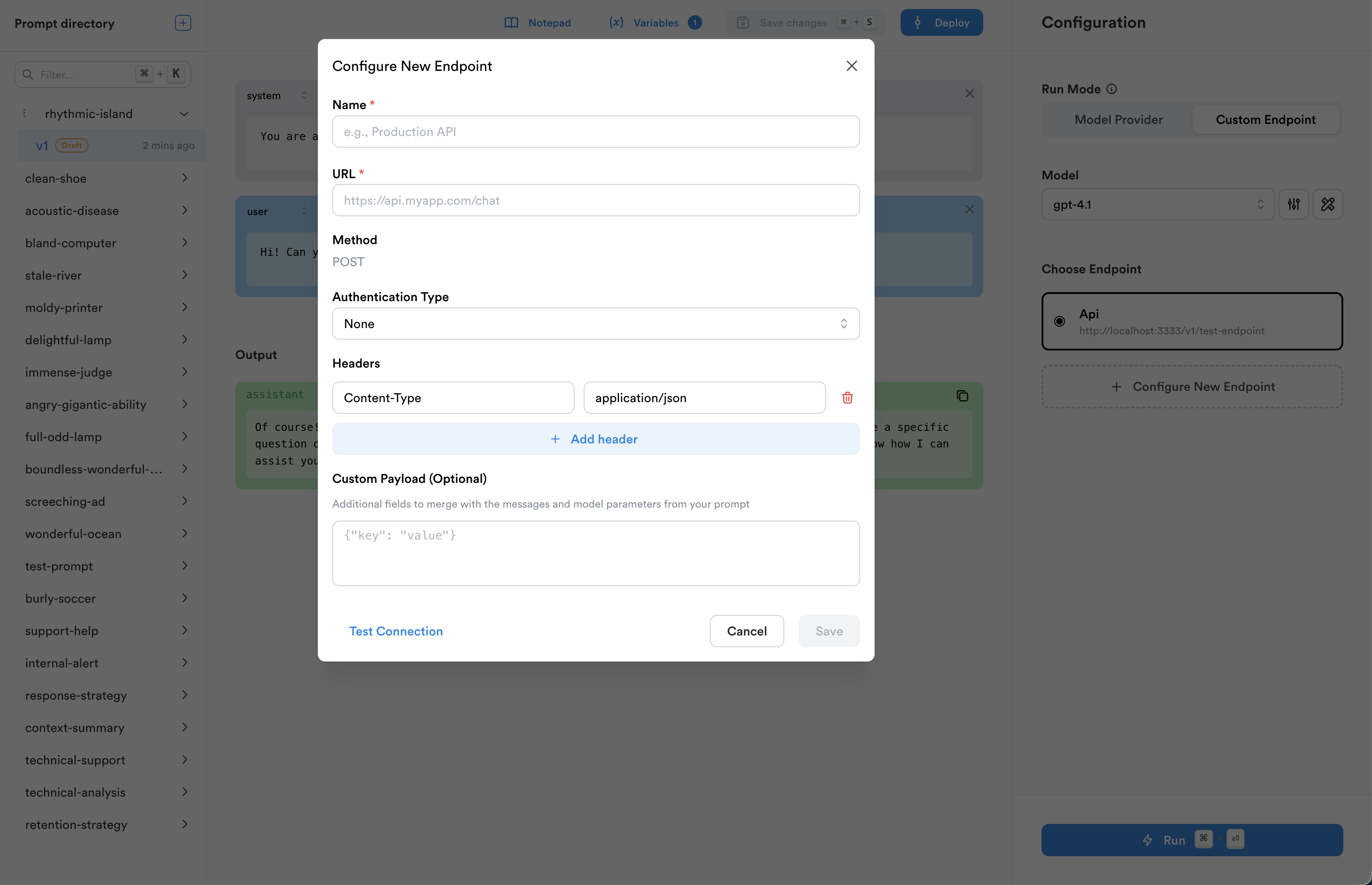
To configure a custom endpoint:- Toggle the Run Mode from “Model Provider” to “Custom Endpoint”
- Click “Configure Endpoints” to set up your API endpoints
Endpoint Configuration
When creating an endpoint, you’ll need to provide:- Name: A descriptive name for your endpoint
- URL: The full URL of your API endpoint
- Authentication: Choose from:
- Bearer Token (for OAuth/JWT)
- API Key (with custom header name)
- Basic Authentication
- No authentication
- Custom Headers: Additional headers to include in requests
- Default Payload: Base payload that will be merged with prompt data
Request Format
When you run a prompt against a custom endpoint, Lunary sends an HTTP POST request with the following JSON payload:- Simple text responses
- OpenAI-compatible message arrays
- Custom JSON structures